The Disk Station
In this tutorial you use a Disk Station to format a disk, install mcos on it, clone it, and plug the station into a computer.
What you need
- A Disk Station (see its page for the recipe: it is crafted around a Tier 1 Hard Disk, and that disk is used up, so its files are gone)
- Two disks of any tiers: one to work on, one to copy from
- A battery with some charge (see power)
- Optionally, a computer from Your first computer
Steps
1. Place it and open it
Place the Disk Station and right-click it. You will see its window: two disk slots (the one it works on, and a source below it that is only read), a battery slot, a radio slot for a Bluetooth card, and five switches: Format, Wipe, Install mcos, Update mcos and Clone.
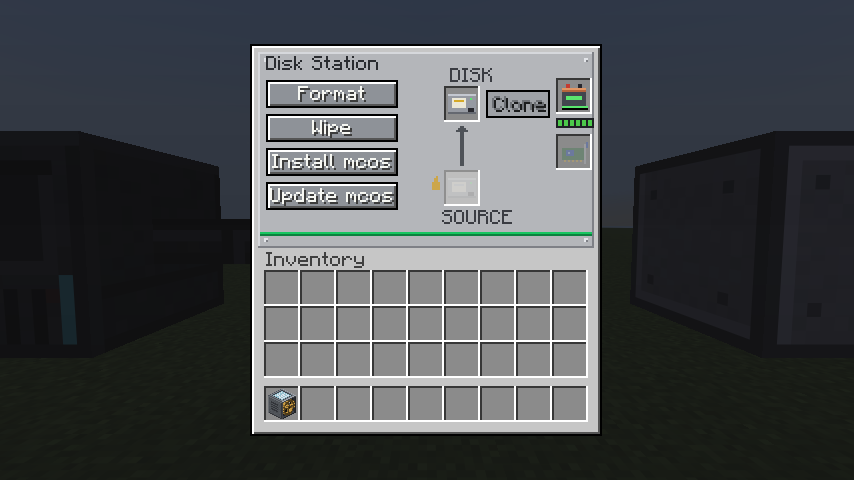 The Disk Station’s window.
2. Give it power
A station pays for each action. It takes the power from a running computer on its bus, and if no
computer is running, from its own battery. Put a charged battery in the battery slot. The window
shows Battery: % beneath it.
3. Make a blank disk
A disk crafted alone comes out blank: its id and its files are cleared. To make a blank disk, put a disk in the crafting grid by itself and take the result.
A blank disk has no mcos, and an EEPROM that finds no /init.lua says boot: no bootable disk.
4. Install mcos
Put the blank disk in the top disk slot (the one it works on). The switches wake up: a switch is dead until the disks it needs are in. Hover over a switch to read what it does. Press Install mcos.
You will see Done appear. The station formatted the disk, then copied the mod’s latest mcos onto it. Take the disk out and fit it in a computer’s SATA socket: it boots.
The other actions work on the same disk:
| Switch | What it does |
|---|---|
| Format | A standard filesystem, empty. Everything on the disk is gone. |
| Wipe | No filesystem: a raw disk, read and written by offset. Everything is gone. |
| Install mcos | Formats, then copies mcos on. |
| Update mcos | Writes mcos’s files over the disk’s, /etc too. Everything else stays. This is how you fix an old install. |
| Clone | The disk becomes a copy of the source disk. |
5. Clone a disk
Put the disk you want to copy in the lower slot (the source), and a disk to be overwritten in the top one. Press Clone. You will see Done. The top disk now has the source’s files and its format. The source is only read, so it cannot be changed through this station.
6. Read the outcome
When an action fails, the window says why:
| It says | It means |
|---|---|
| Missing disk / Missing source | The disk it needs is not in. |
| No Power | There is no running computer, and the battery is empty or missing. |
| Too big to fit | You are cloning onto a disk too small. A raw disk only clones onto one as big. |
| Read-only disk | The disk cannot be written. |
| Failed | Anything else; try again. |
7. Put it on a computer’s bus
Put a cable between the station and a computer’s side (or place the station right against a computer, neither’s front between them: no cable needed). Both of the station’s disks, and the station itself, are now on that computer’s bus while it runs. In mcos, run:
lsdev
cat /dev/diskstation0
You will see the station and its disks in the list, and a line for each slot: target, then its
tier, format, bytes used, capacity and label; source - when its slot is empty. Writing a word to
the station’s file does the action: echo format > /dev/diskstation0. The same five words work:
format, wipe, clone, install, update. See
the Disk Station device and dev.
Congratulations
You can make, repair and copy disks. That finishes the tutorials. The mcos pages explain the system you have been using, and the programs reference lists every command.